Export Airtable to CSV: Views, Large Tables and Whole Bases
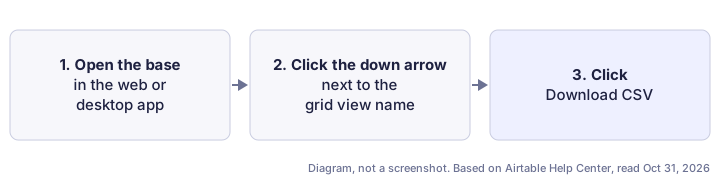
To export Airtable to CSV, open the grid view you want, click the down arrow next to the view's name and choose Download CSV. That takes three clicks, but what ends up in the file depends on how the view is set up. Every step and limit below comes from Airtable's own Help Center, read on October 31, 2026.
New to this? Start with the main guide on selling data to AI buyers, then use this page for the detail.
How to export Airtable data to a CSV file
Airtable exports one grid view at a time. Airtable says exporting grid views to CSV works only in its web and desktop apps, not in the mobile apps.
Set up the view first
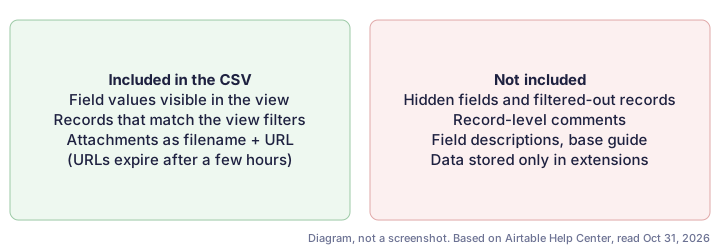
The CSV contains what the view shows. Airtable says all field values visible in the view are included. So:
- Remove filters if you want every record. Airtable says that to download all of a table's records, the view must not contain any filters.
- Unhide the fields you need. Hidden fields are not visible in the view, so they are left out.
- To avoid changing a view your team relies on, duplicate it and adjust the copy.
Download the CSV
- Open your Airtable home screen.
- Open the base that has the grid view you want to export.
- Click the down arrow to the right of the view name.
- Click Download CSV.
If the option is missing in a shared view, the view's creator may have stopped collaborators from copying base data. Airtable says that setting turns off CSV download for that view.
Source: Airtable Help Center: Getting started with Airtable views, sections "Exporting grid views as CSVs" and FAQs (page shows "last updated 1 month ago"; read Oct 31, 2026). https://support.airtable.com/articles/5189551686-getting-started-with-airtable-views. Menus change, so check the page before you start.
What the Airtable CSV export includes
Airtable's FAQ lists what is and isn't in the file:
- Included: all field values visible in the view.
- Not included: record-level comments, field descriptions, base guide content, and data stored only in extensions, such as the Description extension.
Attachments
CSV files hold text only. Airtable says attachment fields are written to the CSV as a filename and URL. Since November 8, 2022, attachment URLs from a CSV export expire after a few hours, for security reasons. If you need the files themselves, download them separately while the links still work. Airtable's attachment article also lets you download a file from the attachment viewer.
Exporting large views
Airtable says any view with more than 5,000 visible records first loads as a 1,000-record preview, showing a count like "Showing the first 1,000 of XX,XXX records." To load the rest, click Load all records next to the record count. You only need to do this once per session, but refreshing the browser resets the preview. Bigger views take longer to load.
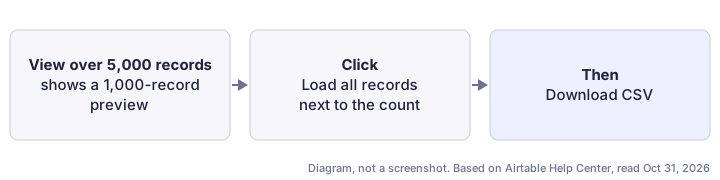
Airtable doesn't say whether a CSV downloaded during the preview contains only the first 1,000 records (Not published). To be safe, click Load all records before you download, then compare the row count in the file with the record count in the view.
Exporting a whole base
There is no single-file export for a base. Airtable says each table has to be downloaded as its own CSV, and attachment files exported separately. For a base with ten tables, that means ten downloads, one from an unfiltered grid view in each table.
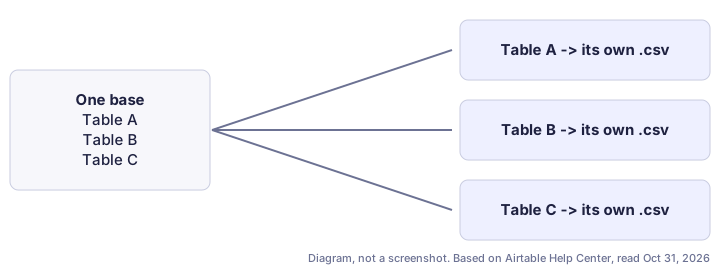
Linked records come through as values in each table's CSV, not as a joined file. Keep every table's export together and name each file after its table and the date. Interface creators can also let users export interface pages as a CSV. Airtable says this is an option the creator has to turn on.
Open the CSV in Excel or Google Sheets
Excel: Airtable doesn't export directly to Excel (.xlsx). Its suggested route is to download the CSV, open it in Microsoft Excel, then choose File > Save As, select Excel Workbook (.xlsx) and click Save.
Google Sheets: Google's help instructions say to open or create a sheet, click File > Import, choose the .csv file, pick an import option (for example, create a new spreadsheet or insert new sheets), and click Import. For a CSV, the separator can be set to detect automatically or to comma.
Exporting with the Airtable API instead
If you need to export often, or want a script to do it automatically, Airtable's Web API has a List records endpoint. Airtable's reference says:
- It returns one page of records at a time, 100 records by default and at most 100 per page, with an offset to request the next page.
- It needs a personal access token or OAuth integration with the
data.records:readscope and at least base read-only access, and it is available on all billing plans. - Records do not include fields with empty values.
- Unlike a CSV download, asking for a specific view returns only that view's records but still includes the fields hidden in it.
The API returns JSON, not a CSV file, so you or a tool you connect has to convert it. Third-party integrations that sync Airtable to other platforms are outside the scope of this guide, and we haven't tested them.
A simple backup process
If the goal is a backup before you cancel an account or close a business, a manual process works for most bases:
- Create a dated folder for the backup.
- In each table, create an unfiltered grid view with every field shown, click Load all records if offered, and download the CSV.
- Check that the row count in each file matches the table's record count.
- Download the attachment files manually, since the links in the CSV expire.
- Write down what the CSVs leave out, such as comments and field descriptions, so nobody assumes they were saved.
Next in this series: export sharepoint list to excel.
Common questions
Can I download my entire Airtable base at once?
No. Airtable says exporting a full base as a single file is not supported. Download each table as its own CSV, and export attachment files separately.
Why is Download CSV missing?
You may be on a mobile app, where CSV export isn't available, or in a shared view whose creator has stopped collaborators from copying base data.
Does the CSV include attachments?
Only as a filename and URL. Airtable says those URLs expire after a few hours, so download the files you need soon after exporting.
Sources
- Airtable Help Center: Getting started with Airtable views, sections "Exporting grid views as CSVs" and FAQs (page shows "last updated 1 month ago"; read Oct 31, 2026). https://support.airtable.com/articles/5189551686-getting-started-with-airtable-views
- Airtable Help Center: Airtable attachment URL behavior (read Oct 31, 2026). https://support.airtable.com/articles/9671148410-airtable-attachment-url-behavior
- Airtable Web API reference: List records (read Oct 31, 2026). https://airtable.com/developers/web/api/list-records
- Google Docs Editors Help: Import data sets & spreadsheets (read Oct 31, 2026). https://support.google.com/docs/answer/40608?hl=en